What are quantity breaks?
Quantity breaks — also called volume discounts or tiered pricing — lower the price per unit as a shopper buys more of the same product. Buy 1 at the regular price, buy 2 and save 10%, buy 3 and save 20%. They work best for products people use up and buy again, like skincare, supplements, coffee or pet food.
The catch on Shopify is how the discount gets applied. Some setups rewrite your product prices or create hidden duplicate variants. Tierly doesn’t: your catalog stays exactly as you set it, and Shopify applies the discount at checkout.
Before you start
- A Shopify store with an Online Store 2.0 theme, so you can add app blocks without code.
- The product (or products) you want to offer tiers on.
- Your margin, so you know how deep each tier can go.
Step 1: Install Tierly and set your tiers
Install Tierly from the Shopify App Store and open Campaigns. Give the campaign a name your shoppers will recognize — for example, “Buy more, save more” — and choose the product. Then add your tiers: a minimum quantity and a discount for each one.
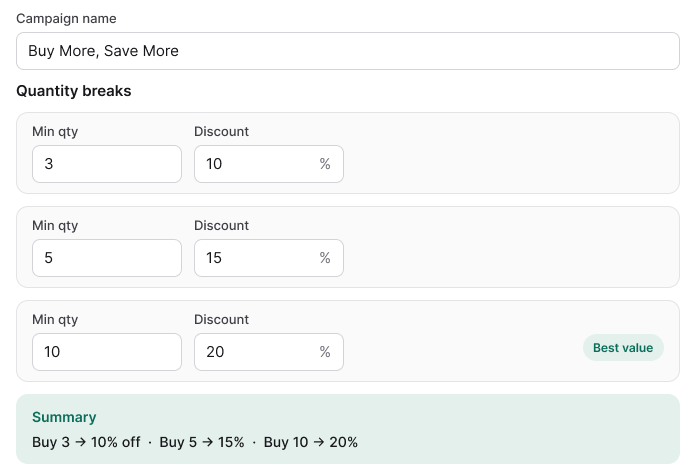
Start with two or three tiers. More than that makes the choice harder for shoppers, not easier.
Step 2: Match the widget to your store
Tierly shows the tiers on your product page as a widget, right under the price. Pick the accent color, the savings color and the text so it looks like part of your theme, and choose what to show: the “You save” amount, a nudge to the next tier and the compare-at price.
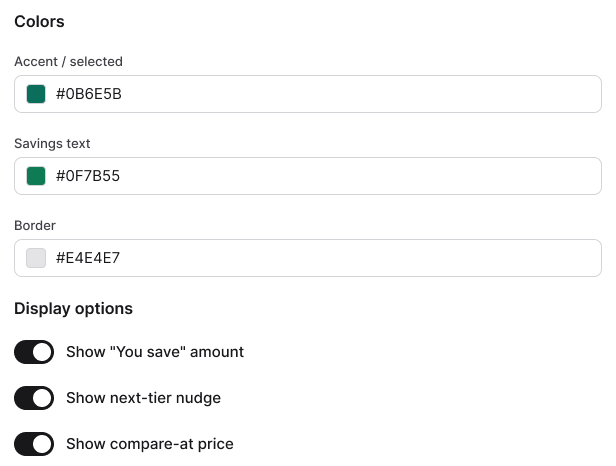
Then open your theme editor, go to your product template and add the Tierly block where you want it. No code involved — and you can remove the block the same way.
Step 3: Check the discount at checkout
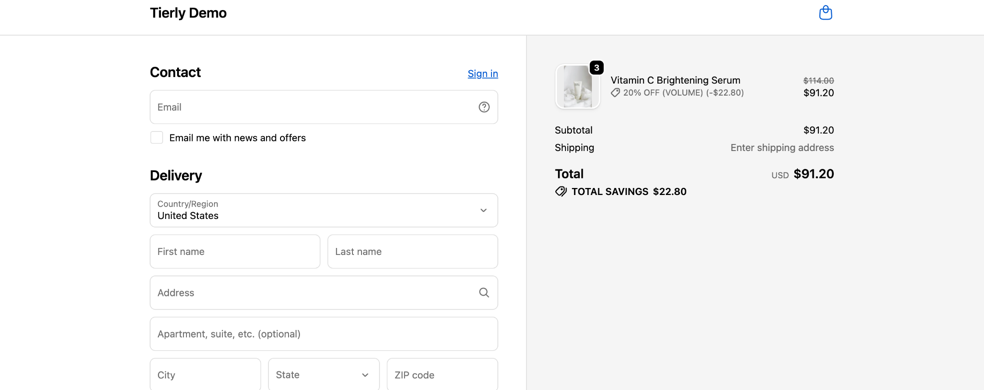
Add two or three units of the product to your cart and go to checkout. Shopify shows the volume discount on the line item and the total savings in the order summary. The product price in your admin hasn’t changed.